
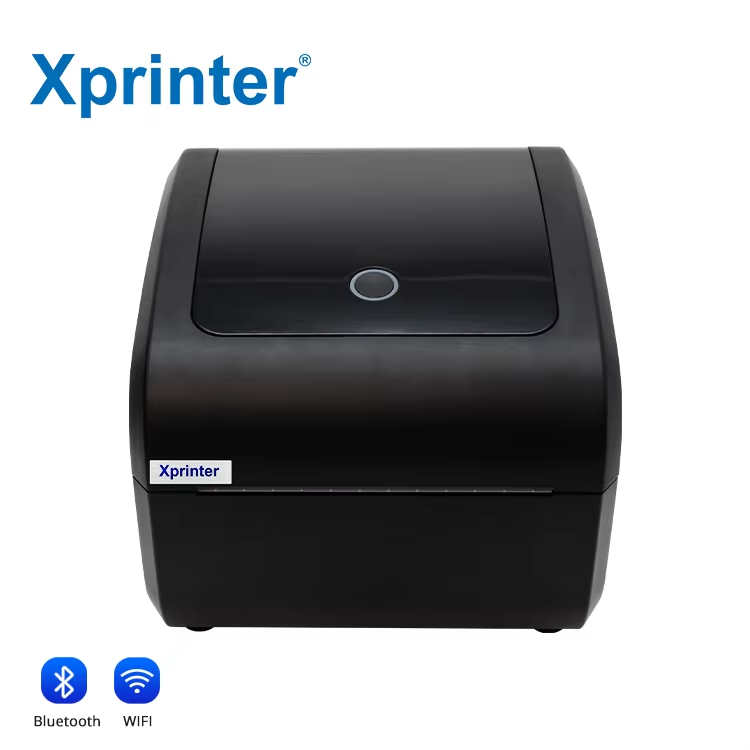
Choosing a label printer involves more than looking at print speed and label size. The way the printer connects to your computer, POS system, or other devices can affect how easily you use it every day.
An Xprinter label printer may support different connection options depending on the model, including USB, Ethernet, Wi-Fi, or Bluetooth. Each method serves a different purpose, so understanding the differences can help you choose a setup that fits your workspace and printing habits.
Why Does Connectivity Matter?
The connection between your device and printer determines how print jobs reach the printer. A simple desktop setup may only need a direct USB connection, while a busy office or retail environment may benefit from network connectivity.
Wireless options can also reduce cable clutter and give you more flexibility when placing the printer.
The best choice depends on how many devices need access to the printer, where those devices sit, and how much control you want over the setup.
USB Connectivity
USB remains one of the simplest ways to connect a label printer to a computer. You connect the printer directly to the computer with a compatible USB cable, install the required driver, and select the printer when sending a print job.
Advantages of USB
USB works well for individual workstations and small setups because the connection remains straightforward.
It can offer:
- Simple installation
- Direct communication between computer and printer
- Reliable performance for regular printing
- Minimal network configuration
The main limitation is that the printer typically stays tied to the connected computer. If several people need to print from different workstations, another connection method may make more sense.
Ethernet Connectivity
Ethernet connects the printer to a wired network. Instead of plugging the printer directly into one computer, you connect it to a router, switch, or other network equipment.
Computers and other supported devices on the same network can then communicate with the printer.
When Is Ethernet Useful?
Ethernet can work particularly well in offices, retail stores, warehouses, and other environments where multiple computers need access to one printer.
A wired network connection also avoids some of the wireless interference and signal issues that may occur with Wi-Fi.
The tradeoff involves installation. You need an available network connection and may need to configure the printer’s network settings before users can access it.
Wi-Fi Connectivity
Wi-Fi allows the printer to communicate over a wireless network. This can make the printer easier to position because you do not need a dedicated network cable running directly to the device.
A Wi-Fi connection can be useful when several computers or compatible devices need to send print jobs without sitting beside the printer.
Benefits of Wi-Fi
Wi-Fi offers flexibility for shared workspaces. It can reduce cable requirements and allow you to place the printer in a convenient location within wireless network coverage.
However, the quality of the connection depends on the wireless network. Weak signals, network changes, or incorrect configuration can interrupt communication.
Bluetooth Connectivity
Bluetooth provides a short-range wireless connection between compatible devices and the printer.
It can suit environments where a nearby phone, tablet, laptop, POS device, or other supported hardware needs to send labels without a physical cable or shared network.
When Should You Consider Bluetooth?
Bluetooth makes sense when mobility matters. For example, a user may need to print labels from a tablet while working close to the printer.
The connection range remains shorter than a typical Wi-Fi network, and compatibility depends on the printer and the device. Pairing may also require additional setup the first time you connect.
Also, explore How Thermal Printing Technology Powers Xprinter
USB vs. Ethernet vs. Wi-Fi vs. Bluetooth
Each connection method has a different strength.
| Connectivity | Best for | Main advantage | Main limitation |
| USB | Single computer | Simple direct connection | Limited sharing |
| Ethernet | Offices and shared workspaces | Reliable wired networking | Requires network cabling |
| Wi-Fi | Flexible shared setups | Wireless network access | Depends on network quality |
| Bluetooth | Nearby mobile devices | Convenient short-range connection | Limited range |
This comparison gives you a starting point, but always check the connectivity options supported by the specific printer model.
Which Connection Should You Choose?
Start by thinking about how you plan to use the printer.
Choose USB for a Dedicated Workstation
USB makes sense when one computer handles most of your label printing. It keeps the setup simple and avoids unnecessary network configuration.
Choose Ethernet for Multiple Users
If several computers need regular access to the same printer, Ethernet can provide a dependable shared connection through your local network.
Choose Wi-Fi for Flexible Placement
Wi-Fi may suit a workspace where you want to avoid network cables or move the printer away from a particular workstation.
Choose Bluetooth for Nearby Mobile Devices
Bluetooth can work well when printing takes place from compatible mobile or portable devices within a short distance.
Can You Use More Than One Connection?
Some printer models provide multiple connectivity options. However, the available combinations and supported functions vary by model.
Having several options can give you more flexibility if your working environment changes. For example, you might initially use USB at a single desk and later move to a network-based setup.
Check the individual model’s specifications before assuming that every connection method works simultaneously.
What About Driver and Software Compatibility?
A physical connection alone does not guarantee that printing will work. Your computer or device may need the correct driver, application, or configuration.
Before setting up the printer, check whether the operating system and software you plan to use support the chosen connection method.
For network and wireless setups, you may also need to configure network settings or pair the printer with the appropriate device.
Troubleshooting Connectivity Problems
When a label printer does not respond, start with the simplest checks.
For USB, inspect the cable and confirm that the computer recognizes the printer. For Ethernet, check the network cable and printer’s network connection.
With Wi-Fi, verify that the printer remains connected to the correct network. With Bluetooth, check that Bluetooth remains enabled and that the printer has successfully paired with the device.
Also confirm that the correct printer appears in your printing software.
Final Thoughts
USB, Ethernet, Wi-Fi, and Bluetooth each provide a different way to connect a label printer. USB suits straightforward single-computer setups, Ethernet works well for shared wired networks, Wi-Fi adds wireless flexibility, and Bluetooth offers convenient short-range connections.
The right option depends on your devices, workspace, number of users, and network setup. Checking those requirements before choosing a printer can save time and make everyday label printing much easier.