
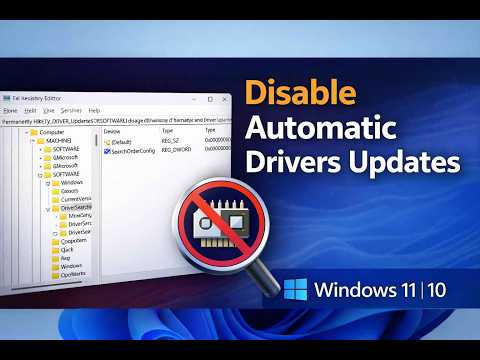
Keeping Windows 11 drivers current sounds like an obvious way to prevent hardware problems, yet an update can occasionally introduce the very issue it was meant to solve. For home users, remote workers, and small businesses across New Zealand, a changed display, audio, Wi-Fi or printer driver can quickly become a productivity problem.
When a Windows 11 driver issue appears immediately after an update, knowing whether the cause is compatibility, configuration, or the driver itself becomes important. Understanding how automatic driver updates in Windows 11 handle drivers, why compatibility can vary between devices, and what to do when something stops working helps users troubleshoot safely.
Why a newer driver is not always a better driver
Drivers sit between Windows and physical hardware. A newer version may contain fixes, security improvements, or compatibility changes, but that does not guarantee it will behave identically on every laptop or desktop. Microsoft explains that Windows 11 automatically installs recommended drivers through Windows Update, while optional driver updates require the user to select them.
The important distinction is that a driver can be technically compatible with Windows while still behaving differently on a particular hardware configuration. Laptop manufacturers may also customise drivers for their specific models, particularly for graphics, power management, audio, touchpads, and wireless hardware.
This is why automatic driver updates can sometimes produce unexpected results even when Windows reports that the installation completed successfully.
What can go wrong after an automatic update?
The symptoms often provide useful clues. A problem that appears immediately after a driver change is more likely to be related to that update than a completely unrelated hardware failure.
Graphics changes can affect stability
A graphics driver update may change how Windows communicates with the GPU. Users might notice screen flickering, altered display scaling, external-monitor problems, application crashes or reduced performance. This is particularly relevant on laptops that use customised graphics configurations or switch between integrated and dedicated GPUs.
Wireless connectivity can suddenly change
A Wi-Fi driver update can alter compatibility with a particular wireless chipset, router configuration or power-management behaviour. A laptop that previously connected reliably may begin dropping connections, showing slower throughput or failing to reconnect after sleep.
Peripheral devices may need additional attention
Printers, scanners and other peripherals can be more sensitive to driver changes. A printer driver that worked correctly before an update may require reinstallation or configuration changes if Windows no longer communicates with the device as expected.
These symptoms do not automatically prove that the driver is defective. Hardware faults, Windows updates, application changes, and network configuration issues can create similar symptoms. Timing is therefore an important diagnostic clue, not definitive proof.
Why Windows can install a driver that is not ideal for your device
Driver distribution involves more than simply downloading the newest file available online. Microsoft states that many drivers are developed by hardware or software providers and then certified for compatibility with Windows. Microsoft may also provide drivers for appropriate devices.
The challenge is that a laptop is a complete system rather than a collection of isolated components. A manufacturer may customise firmware, power settings or other software around a particular driver version.
For that reason, Windows Update drivers can be legitimate while a manufacturer-provided package is a better choice for a specific model. Microsoft itself recommends checking the hardware manufacturer’s website when Windows Update cannot find a suitable or newer driver.
For users researching Windows 11 driver updates, the safest approach is therefore not to assume that the highest version number is automatically the best option. Check the laptop or component manufacturer’s support page, model number, and supported Windows version before replacing a driver manually.
How to respond when a driver update causes trouble
The best troubleshooting approach is to reverse the most recent change before making several new changes at once. This makes it easier to identify the actual cause.
Start with the timing
Think about what changed immediately before the problem appeared. Did the display stop behaving normally after an update? Did Wi-Fi become unreliable after restarting? Did a peripheral disappear?
Windows can show installed driver information through Device Manager, allowing you to compare the affected device with the timing of the problem.
Use Device Manager when the previous driver is available
Microsoft provides a built-in driver rollback option through Device Manager for situations where a recent driver update caused a problem. The process is available under the device’s Properties and Driver tab, although the option may not be available if Windows does not have a previous driver to restore.
This is generally preferable to downloading random driver packages from third-party websites. Once the previous driver is restored, restart the computer and check whether the original behaviour returns.
Consider the manufacturer’s driver
If rolling back is unavailable or does not solve the problem, look at the manufacturer’s support site. For a laptop, use the exact model or service identifier rather than searching only by a generic component name.
This matters because OEM drivers can include hardware-specific compatibility work that a generic package may not provide.
When recovery tools make more sense than repeated driver changes
Sometimes the problem is broader than one device. If several system functions began failing after a recent change, repeatedly installing different drivers can make diagnosis harder.
Microsoft recommends using progressively more disruptive recovery options when Windows becomes unstable. Depending on the situation, these can include uninstalling a recent Windows update, reinstalling the current Windows version, using a restore point, or resetting the PC.
A system restore can be particularly useful when a recent driver installation or system change caused instability because it can return system files and settings to an earlier state without removing personal files.
However, recovery should not be the first response to every minor hardware problem. If only one device is affected and the timing strongly points to a recent driver change, targeted troubleshooting is usually more appropriate.
What New Zealand users should check before updating drivers
Driver problems can have practical consequences when a computer is being used for work, study, or running a small business. A few habits can reduce unnecessary disruption:
- Record the laptop or PC model before downloading anything manually.
- Prefer Microsoft Update or the manufacturer’s official support page.
- Do not install several unrelated driver packages simply because they are available.
- Create a backup before undertaking major troubleshooting.
- After an update, test important functions such as Wi-Fi, audio, external displays, and printing.
- If a problem appears immediately after an update, investigate that change before replacing other components.
For households and businesses that rely on computers every day, local technical support can also be useful when the cause is unclear. In New Zealand, Tech On Road provides on-site laptop and computer repair, troubleshooting, setup and IT support across Wellington, Hutt Valley and Wairarapa, which can be particularly practical when a device needs hands-on diagnosis rather than another round of software changes.
A safer way to think about driver updates
Driver updates should not be treated as something to fear or something that must always be installed immediately. They are an important part of keeping Windows hardware supported, but the right driver depends on the device, operating system, manufacturer, and particular configuration.
The key lesson behind automatic driver updates in Windows 11 is that automation is designed for convenience, not to eliminate every compatibility variable. When a computer develops a problem immediately after an update, pause before installing more software. Identify the affected hardware, check the timing, consider the manufacturer’s recommended package, and use Windows recovery tools when appropriate.
For anyone experiencing driver update problems, the goal is not simply to find a newer driver. It is to restore a stable, correctly matched configuration while understanding what caused the failure. That approach saves time, reduces unnecessary changes, and gives users a much better chance of keeping their Windows 11 systems reliable.